
Install extensions
Extensions add tools, agents, skills and whole offices to Kernl. Many come with Kernl for free. Paid ones come from the Kernl store, and you can buy each one once or get them all with All-Access. You do everything from the dashboard, and you never need a terminal.
The Extensions page is in English only for now, so this guide quotes its buttons in English.
Open the Extensions page
- Open the dashboard at
http://localhost:3086. If you have not done this yet, see first run. - In the bar on the left, click System. Then click Extensions in the tabs at the top. You can also go straight to
http://localhost:3086/extensions.
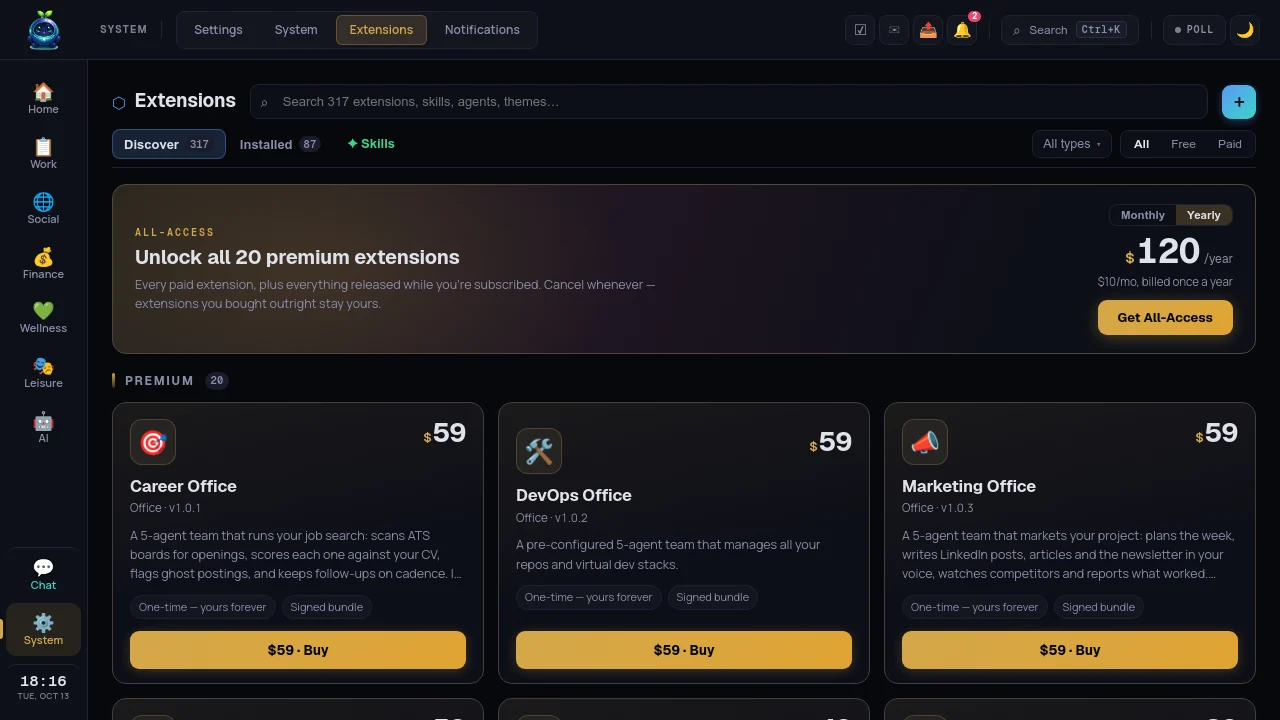
The page has these tabs:
- Discover: everything you can add. What you already have is hidden here, and a link at the bottom tells you how many are hidden.
- Installed: what you have, with its state.
- Updates: only shown when an update is waiting.
- ✦ Skills: skills on their own.
Use the search box and the filters to narrow the list. Free / Paid filters by price, and For you / For your business filters by audience.
Install a free extension
- In Discover, find the extension. Free ones that ship with Kernl are marked "Bundled with Kernl".
- If you want details, click the card to open its side panel. Under Permissions requested you can see what it will use.
- Click Install, on the card or in the panel. Kernl does not ask you to confirm.
- The card moves to Installed. Most extensions start as ACTIVE right away.
- If the card says INSTALLED instead of ACTIVE, open it and click Enable. Some extensions download their packages the first time you enable them, so this can take a moment.
- Restart Kernl if the extension adds new tools or a backend. See restart Kernl.
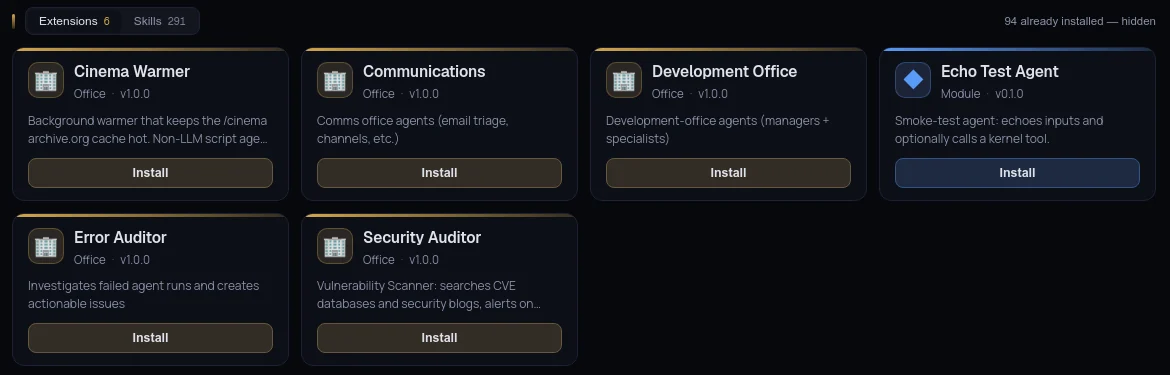
An extension written by a third party may show the banner "Pro author extension". It stays idle until you click ✦ Activate and confirm.
Buy and install a paid extension
Paid extensions appear in Discover under Premium. Each card shows the price and "One-time — yours forever".
- Click Buy on the card (for example $39 · Buy). Stripe Checkout opens in a new tab.
- Pay in that tab. While you pay, the card says "Finish the payment in Stripe — this card updates itself."
- Go back to Kernl. Once the payment clears, Kernl gets your license, saves it, and installs the extension by itself. You never handle a license key.
- The Stripe tab ends on lifekernl.com/account with "Payment received". You can close it.
- Restart Kernl so the extension's code starts running.
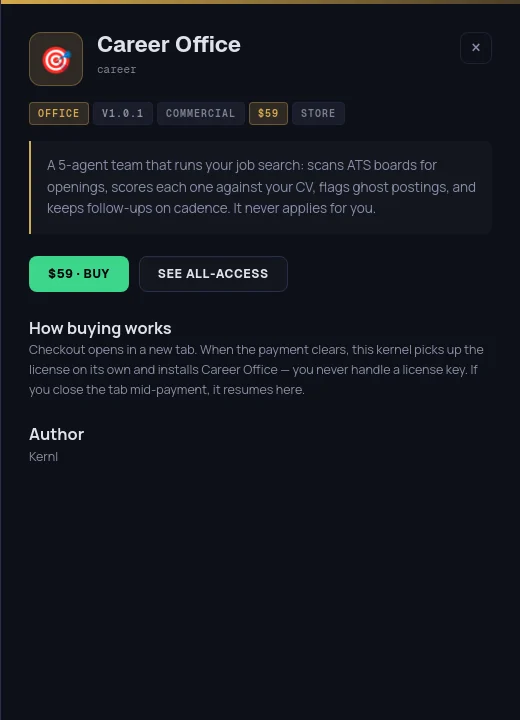
If you close the Stripe tab before paying, the card shows Continue payment ↗ so you can resume, and Cancel purchase if you changed your mind. A started checkout can be finished within 24 hours.
If a card says See pricing instead of a price, the purchase is made on lifekernl.com/pricing. Then add the license as shown in add your license by hand.
All-Access
All-Access unlocks every paid extension, current and future, for a monthly or yearly fee.
- At the top of Discover, in the All-Access box, pick Monthly or Yearly.
- Click Get All-Access and pay in the Stripe tab that opens.
- When the box says "All-Access is active", install any paid extension with its Install button. You will not be charged again.
Kernl renews the subscription license on its own. If you cancel All-Access, the extensions you bought one by one stay yours, and the rest are locked.
Add your license by hand
You only need this if you bought on the website, if you are moving to another computer, or if you reinstalled Kernl. The license arrives by email after the purchase.
- In the bar on the left, click System. Then click Settings in the tabs at the top, and License in the settings list. You can also go to
http://localhost:3086/settings?section=license. - Under Add your license, paste the license. It starts with
eyJ…. It saves as soon as you paste it. You can also click Upload license.jwt file. - Kernl shows "License saved. Unlocked: …" with the extensions your license covers.
- Click Install them from the Store →, and install each one from Discover.
- If an extension was already installed and locked, open it in Installed and click Enable.
- Restart Kernl.
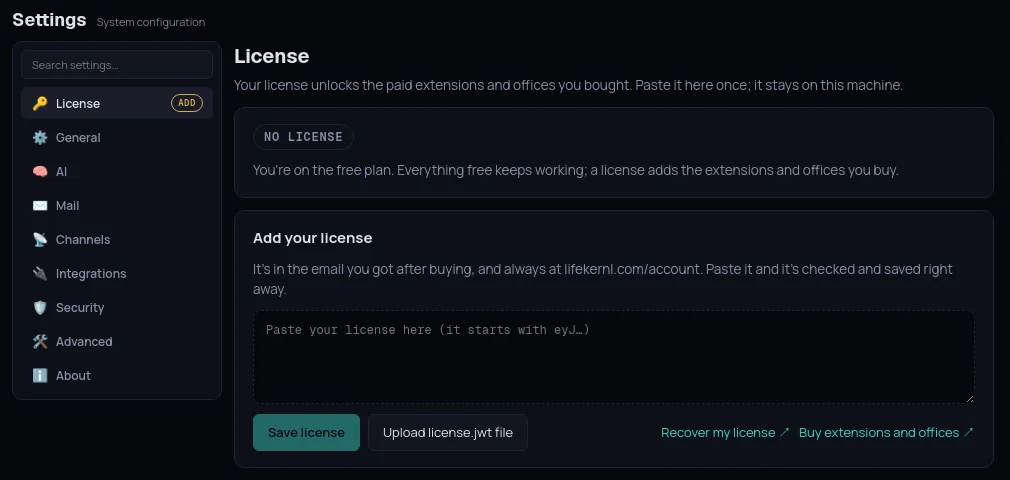
Lost the email? Click Recover my license ↗. It opens lifekernl.com/account, which sends the license again to the email you bought with.
To use the same license on another computer, click Copy license in Settings → License and paste it there. The file lives in ~/.config/kernl/license.jwt. See where things are for each system.
Other ways to install
The + button next to the search box has two more ways in.
From a .kernl file
Use this for an extension someone sent you as a file.
- Click +, then Install bundle.
- Click Upload .kernl file and pick the file. Kernl accepts
.kernl,.kernlext,.tar.gzand.tgz, up to 50 MB. - Click Install.
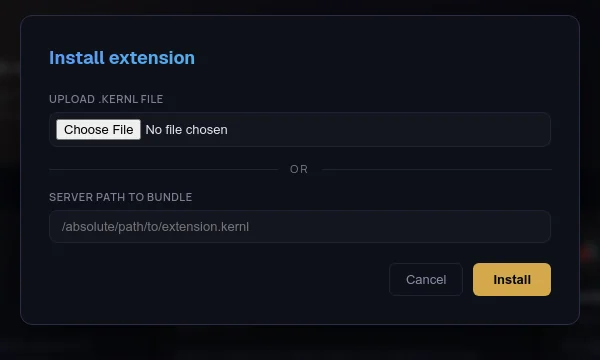
Kernl checks the file's signature. A file that was changed after it was signed is refused, and so is a paid extension without its vendor signature. Only install files from people you trust.
From a Git repository
Use this for skill collections published on GitHub or similar.
- Click +, then Add repository.
- Paste the public URL under Repository URL, or choose one from or pick a known one. A branch, tag or commit is optional.
- Click Subscribe + sync. Kernl clones the repository and adds what it finds to Discover.
- Install the items one by one. You can also use ✦ Install all in + → Manage repositories.
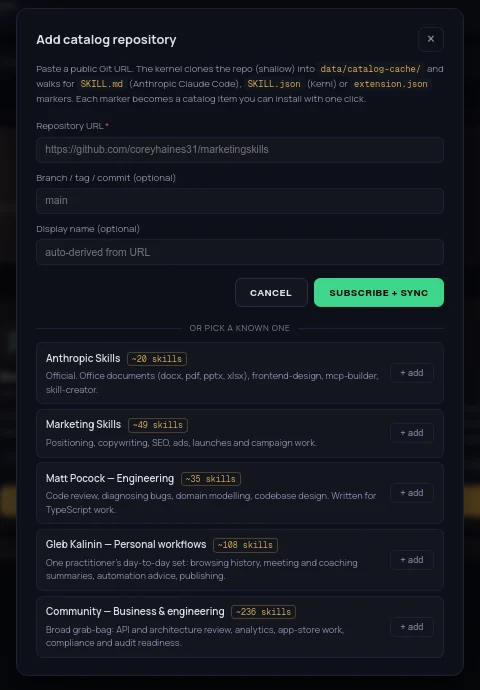
From Manage repositories you can also ↻ Sync to pick up changes, or × Remove a repository.
Restart Kernl
Skills, agents and themes work as soon as you install them. An extension with its own code runs after the next start of Kernl. The Extensions page does not remind you of this.
- In the bar on the left, click System. Then click Settings in the tabs at the top, and About in the settings list.
- Click Restart Kernl.
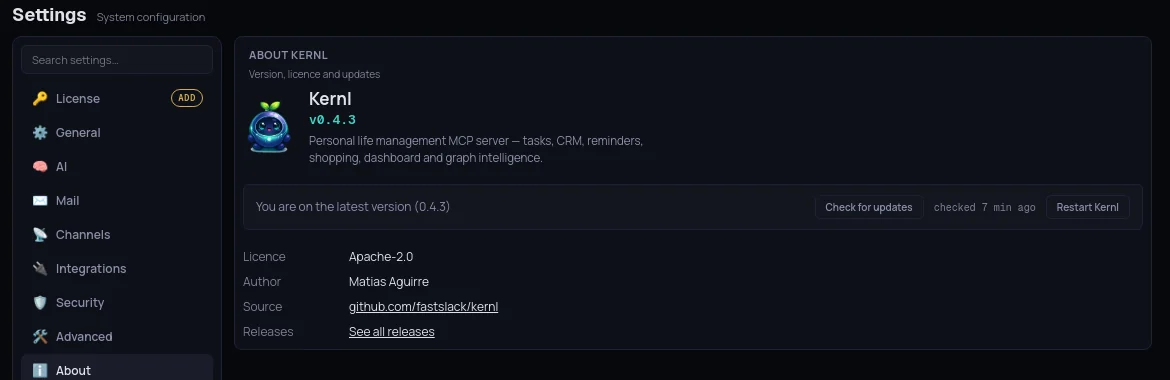
If you run Kernl from the source code, that button is not there. Stop Kernl and start it again. With Docker, run docker compose restart kernel from the Kernl folder.
Enable, disable, update and uninstall
Open the extension's card in Installed to see its side panel.
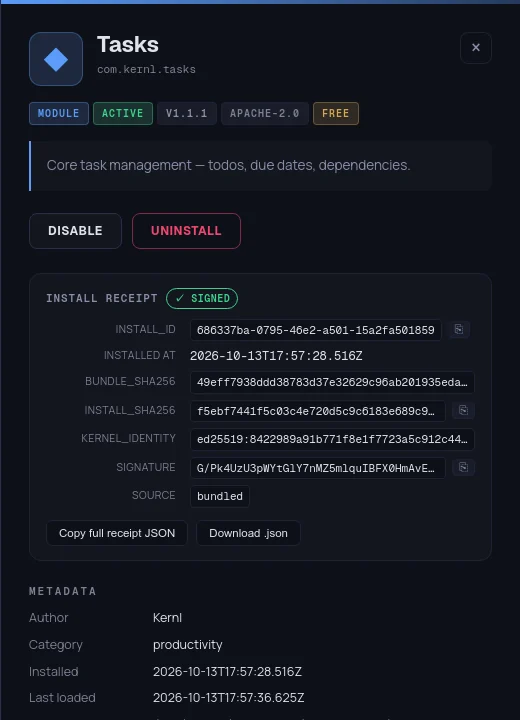
- Disable turns it off and keeps its data. Enable turns it back on.
- Uninstall removes it. Kernl asks you to type the extension's name to confirm. Extensions that are part of Kernl itself cannot be uninstalled. If another extension needs this one, Kernl tells you which one and stops.
- Paid extensions update on their own. The new version runs after you restart Kernl.
The state shown on each card means:
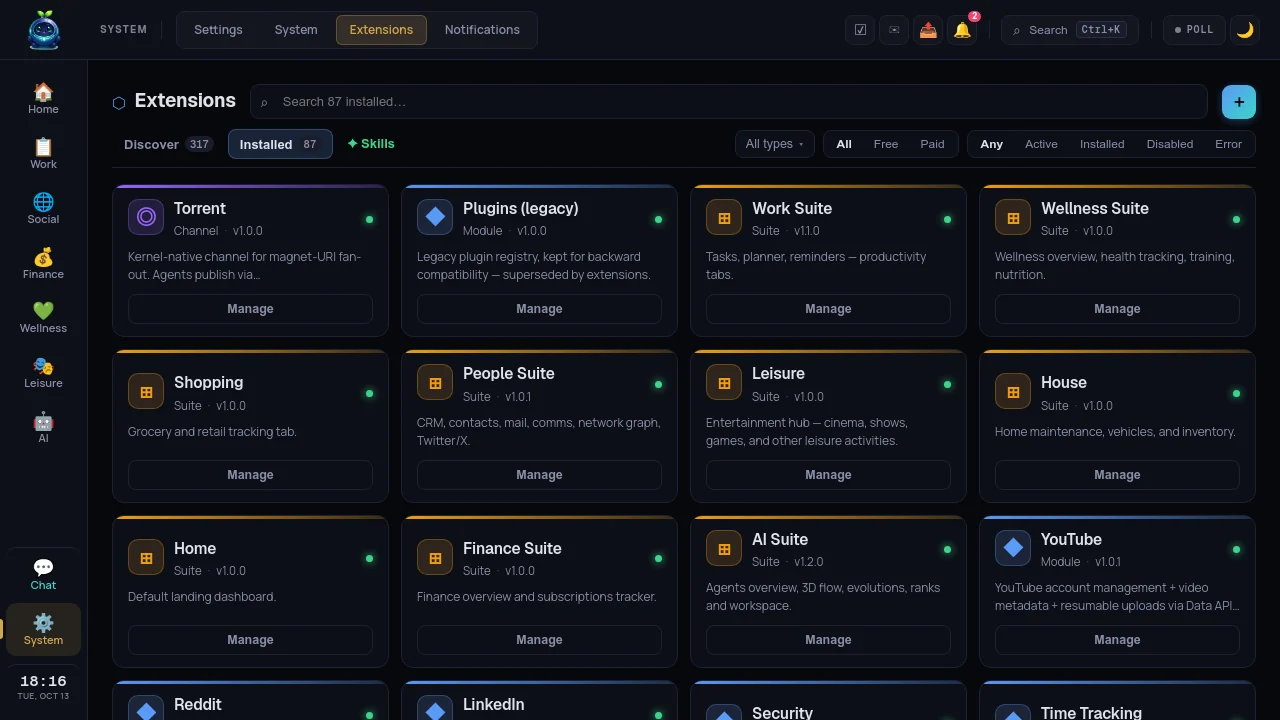
| State | Meaning |
|---|---|
| ACTIVE | Installed and running |
| INSTALLED | Installed but waiting: click Enable, ✦ Activate, or add a license |
| DISABLED | Turned off by you |
| ERROR | It failed to load. Open it to read why |
| OWNED | Your license covers it. Install it without paying again |
When something goes wrong
A red bar says an extension failed to load
Click the bar. The card in ERROR shows the reason. "Dependencies not satisfied" means it needs another extension: install or enable that one, then restart Kernl.
"Requires pro:… — your licence does not include it"
The extension is paid and the license in this Kernl does not cover it. Buy it, get All-Access, or add your license if you already paid. Then click Enable and restart.
"This license wasn't accepted"
The pasted text is incomplete or is not a Kernl license. Copy it again, whole, from the purchase email or from lifekernl.com/account.
"Your license expired"
An All-Access subscription ended. Renew it on lifekernl.com/pricing, or paste the new license. Extensions you bought one by one keep working.
"The Kernl store is unreachable"
Kernl could not reach the store, so paid extensions cannot be listed or bought right now. Check your connection and try again later. Installed extensions keep working.
"Signature verification failed"
The .kernl file was changed, or it is not from its vendor. Download it again from its original source.
"targets SDK v… — rebuild it"
The extension was made for a different version of Kernl. Update Kernl, or ask the author for a new build.
"Purchase completed … but installing failed"
You paid and your license is saved. Only the install failed. Go to Discover and click Install on the extension. You will not be charged again.
If Kernl says it rejected the license from a purchase, write to support@lifekernl.com. Your purchase is on file.